 zeitberg
VERSION 1.4
User guide
Setup and instructions for workspaces, time tracking, tasks, and shared expenses.
You can test the app in the playground without connecting a repository. It uses fictional data. Edits disappear when you reload, including edits you have saved.
All screenshots below use the fictional playground. Your workspace names, projects, and enabled apps will differ.
01 · Connect your repository
A workspace is a Git repository containing a zeitberg.json configuration and your data. You need an account with a supported Git hosting provider, not a separate zeitberg account.
- On the welcome page, choose GitHub, Codeberg, or GitLab.
- Review the provider’s access request. GitLab and Codeberg return you to zeitberg after authorization. GitHub shows a device code: open GitHub, enter that code, and authorize.
- Select one or more workspaces from the repository list and choose Add selected workspaces. Already connected repositories are marked. Or choose Create workspace: enter a repository name, display name, timezone, and apps. New repositories are private.
- Wait for initialization to finish. zeitberg opens the app after every configured connection has finished loading or reported an error.
GitHub: authorization and installation are two separate steps
Authorization identifies you. Installing zeitberg.io grants access to repositories. In the chooser, use Grant or update repository access to install the app on your account or adjust its selected repositories. Return to zeitberg to restart discovery; Refresh repositories is also available.
Repository creation is for your personal account and needs the app’s Repository creation: Read and write permission. If prompted, approve the permission update in GitHub. Repository Administration is not required.
I cannot find my workspace
The scan automatically checks all repository pages; you can filter and select results while it runs. GitHub lists repositories accessible through your app installations, not every repository visible to your account. Check installation access if one is missing.
Turn off the workspace-only filter to include repositories without a root zeitberg.json. Add them and use Edit workspace to finish configuration. For another branch, a nested configuration path, self-hosting, or PAT access, use Custom connection.
Creation failed or the name is already taken
Do not keep creating repositories under new names. A timeout can happen after the provider accepted the request. Check the repository list and refresh first. If initialization was interrupted, the new connection is retained: reconnect and finish setup through workspace settings. A repository that belongs to someone else cannot be adopted by changing its name in zeitberg.
GitLab and Codeberg OAuth access can be broader than a single repository. Review the consent screen; use a suitably scoped token under Custom connection if you prefer.
02 · Workspaces and sharing
Open Workspaces in the sidebar to add, edit, reconnect, share, or disconnect a connection. Each card shows its status, enabled apps, and loaded data counts. Startup waits for every connection to load or report an error, with progress shown per workspace. A failed connection does not prevent healthy ones from opening; an attention indicator remains in the sidebar and on its card.
Choose an app in the sidebar, then use the workspace title at the top to switch between workspaces that provide that app. Time-entry search searches across connected workspaces by default; use its detailed options to select specific workspaces.
Use Edit workspace to change its configuration and enabled apps. Connection settings such as repository and credentials belong to this browser; the shared workspace configuration belongs to the repository.
| Control | Use it to… |
|---|---|
| Edit (pen) | Change the workspace name, timezone, and enabled apps. Confirming saves the shared configuration. |
| Share | Copy a locator or capability link for this workspace. |
| Open | Open the connection in a compatible app without disconnecting others. |
| Reconnect (circular arrow) | Renew this connection’s credentials. |
| Disconnect (red bin) | Remove this browser’s connection, not the repository. |
Tasks also offers All workspaces. Each task retains its origin; editing it saves back to that repository. When creating a task in the combined view, choose its workspace together with its project/section. Time calendars and expense balances stay separate.
Share a link or QR code
A normal view URL records navigation without a credential. A capability link also includes access credentials and lets its recipient connect directly. Use the workspace’s Share action, or add a connection by pasting a workspace link or scanning its QR code.
When encrypted invitation sharing is configured, Share creates a short link that expires after 30 days. Encryption happens in your browser; the service stores ciphertext, and the key stays in the URL fragment. You can revoke invitations from the same browser’s Share dialog. Revocation prevents new imports, not access already imported. OAuth account grants cannot be shared this way; use a dedicated repository token.
Treat capability links like passwords. Anyone holding one can use the token’s permissions, potentially beyond this workspace. Share privately, use narrowly scoped credentials where possible, and revoke access at the provider when it is no longer needed. Disconnecting in zeitberg does not revoke a token.
03 · Time tracking and leave
The week view shows entries in day columns. Select an entry to reveal edit, split, delete, and resize controls. Drag its body to move it; use a gap’s plus button to add time. On a narrow screen, the day window slides with the previous/next buttons.
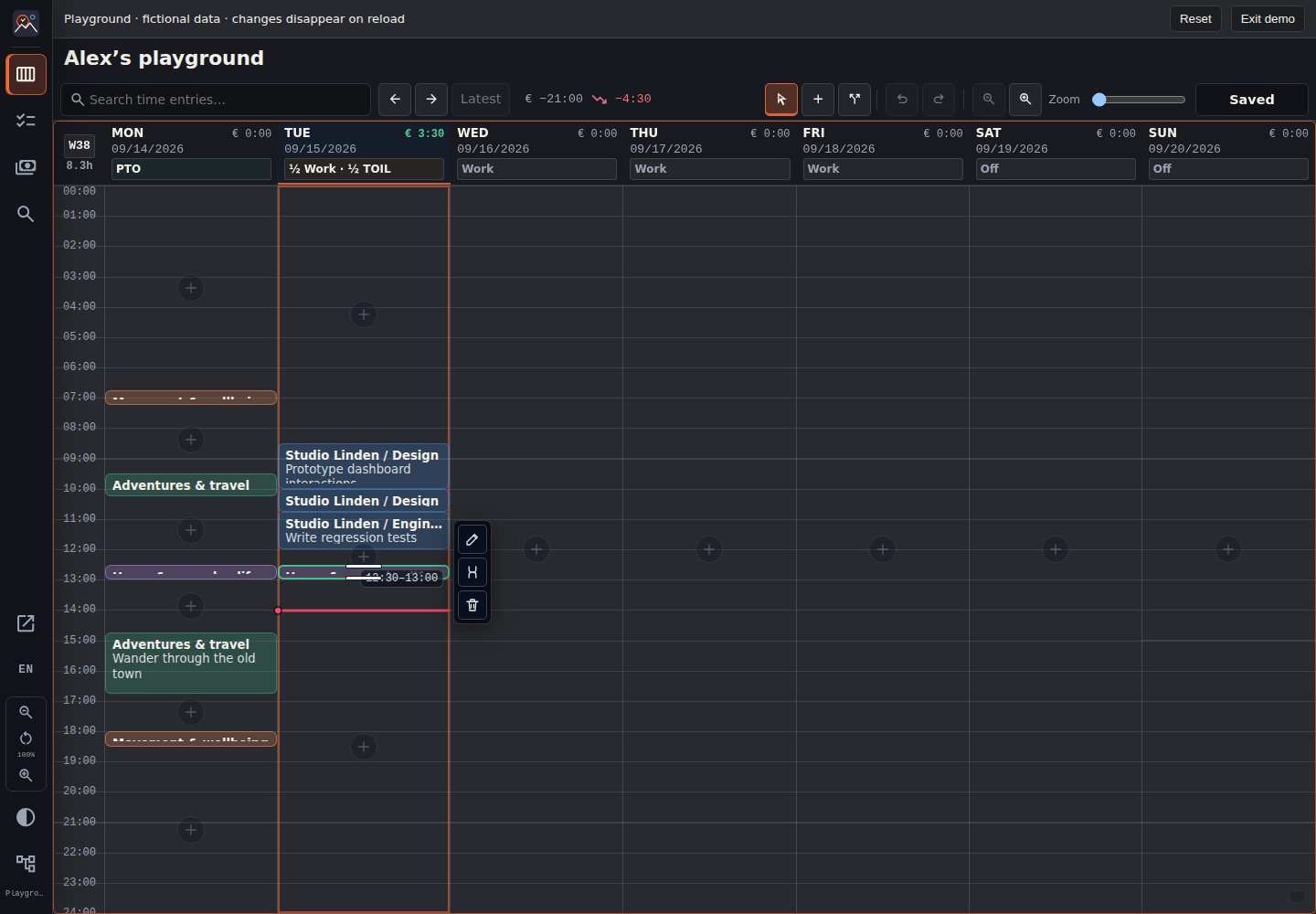
Double-click an entry or press Enter to edit its times, description, and project. The description receives focus; Shift + Tab takes you to the end time directly above it. Suggestions reuse recent descriptions. The project controls whether time is billable. Select the week/date control to jump to a date; timeline zoom changes the hour scale.
| Key | Action |
|---|---|
| ← / →, ↑ / ↓ | Move between days and entries |
| A / S / Escape | Add / split / normal mode |
| Enter / D | Edit or confirm / delete selected entry |
| Shift + ↑ / ↓ | Change duration in normal mode |
| Ctrl + ↑ / ↓ | Move an entry in normal mode; jump gaps in add mode |
| Ctrl + Z / Ctrl + Y | Undo / redo |
| Ctrl + K / Ctrl + G | Search / week view |
| Ctrl + S | Save pending changes |
Entries do not overlap. Moving into earlier entries compresses them to a minimum of 15 minutes, then moves them; later entries are moved forward. An edit that would cross the week boundary is rejected.
Work hours, PTO, and overtime
Click the overtime summary or a day’s work/leave annotation. Configure employers and schedules, then mark half-days or whole days as work, PTO, sick leave, TOIL, or public holiday. Public holidays are marked manually. Only billable time counts toward work totals.
The current week’s delta includes requirements only through today. Vacation totals distinguish Taken, Planned, and Unplanned for the current calendar year, with carry-over. Expand the PTO overview to see the dates behind the balance.
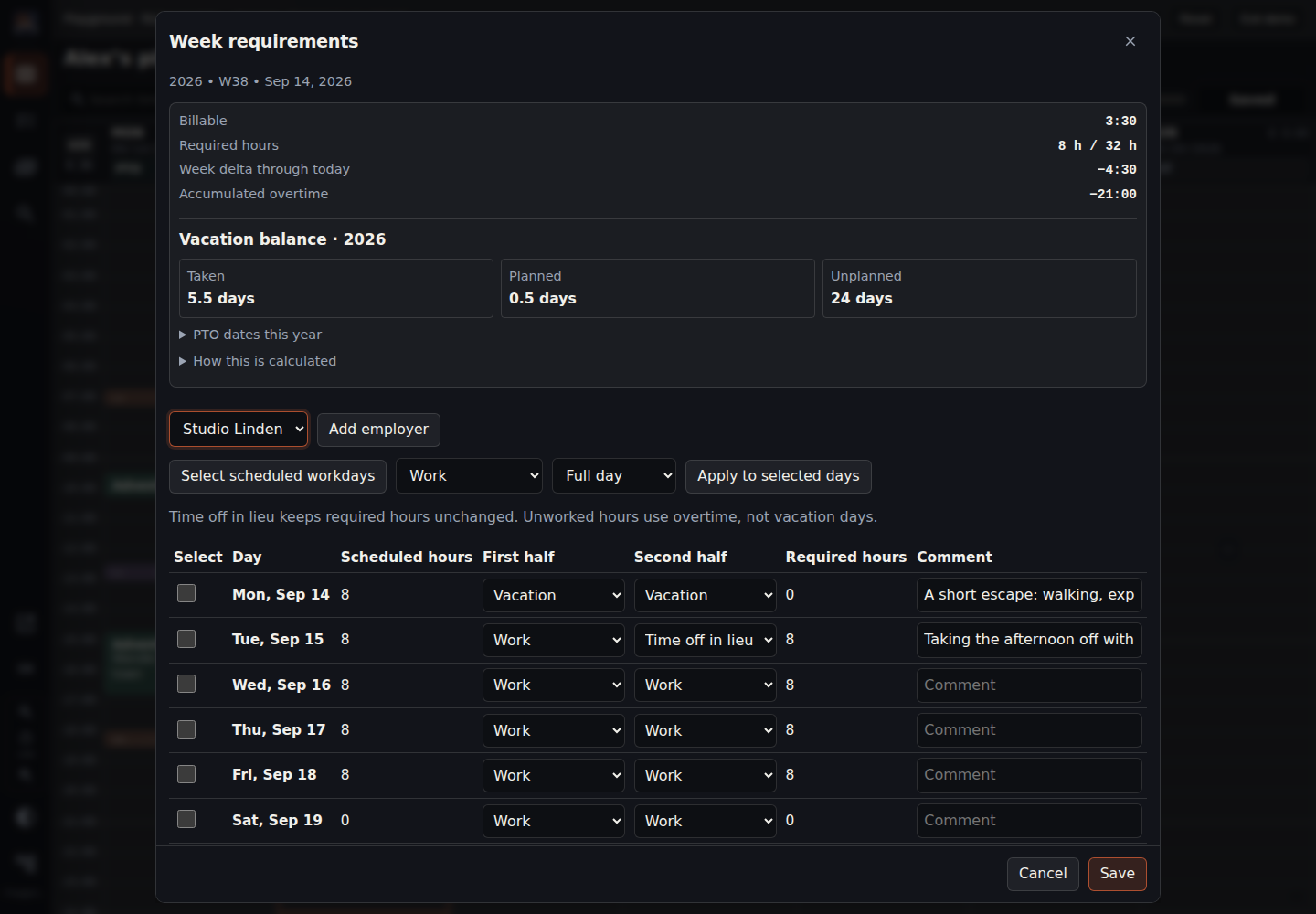
Example: record half a day of vacation
- In the playground week view, open the overtime summary.
- Find the employer and a future day you want to change. Choose Vacation for one half of the day; leave the other half as Work.
- Add a comment if useful and confirm. Review the weekday annotation and the year’s Planned/Unplanned vacation balance.
PTO consumes vacation entitlement. TOIL is time off against your accumulated work balance; do not mark it as PTO merely because you are away from work.
04 · Tasks
Choose Tasks and press the green Add task button. The due date starts at Today; change or clear it as needed. Enter the task title first, then optionally choose a shared project/section, recurrence, or further details.
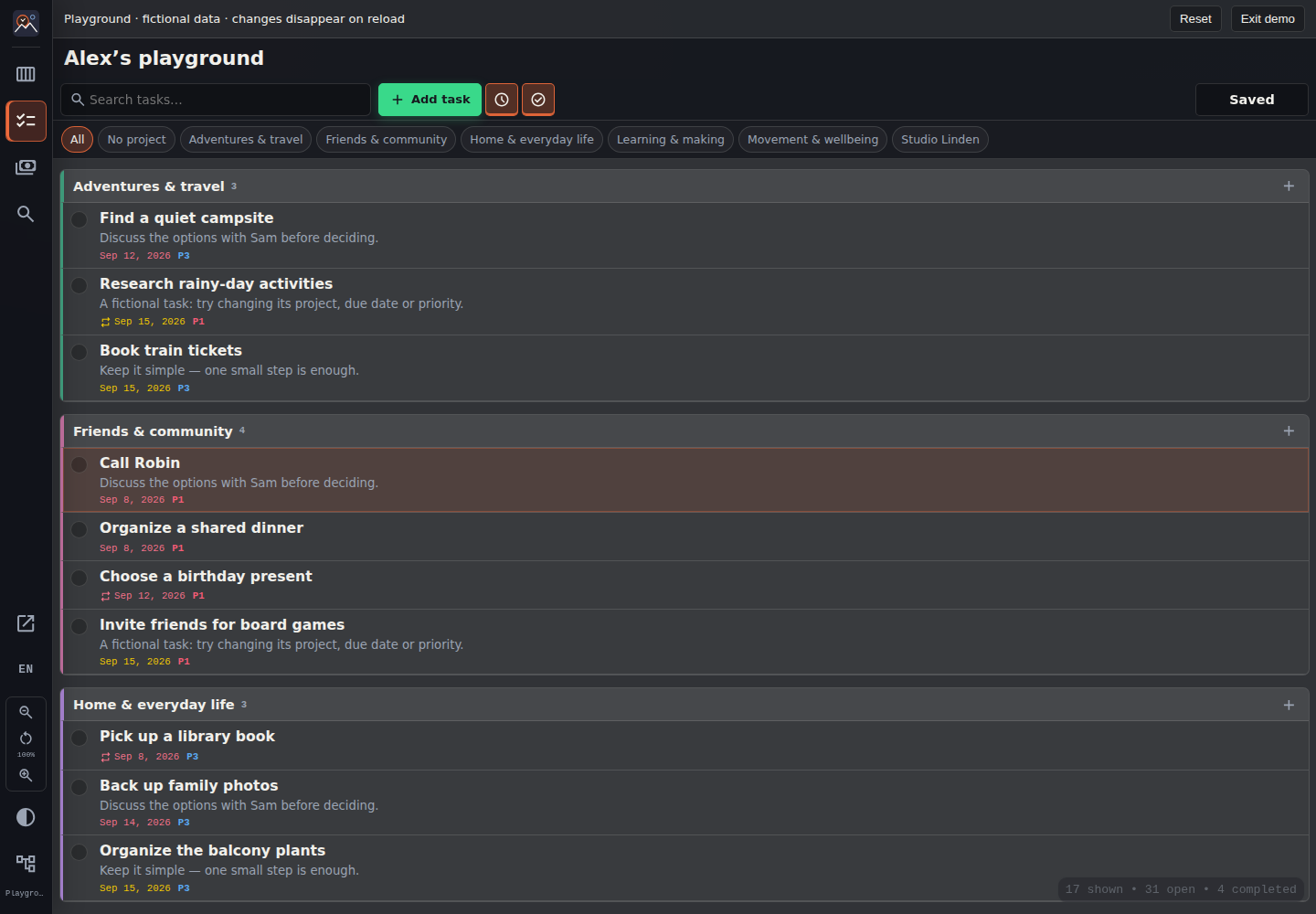
The clock filter shows current and overdue tasks; the checkmark filter hides completed tasks. Search in the top bar searches tasks while this app is open. Recurring tasks retain their recurrence when completed. Completing, editing, and deleting tasks use the same save indicator as time and expenses.
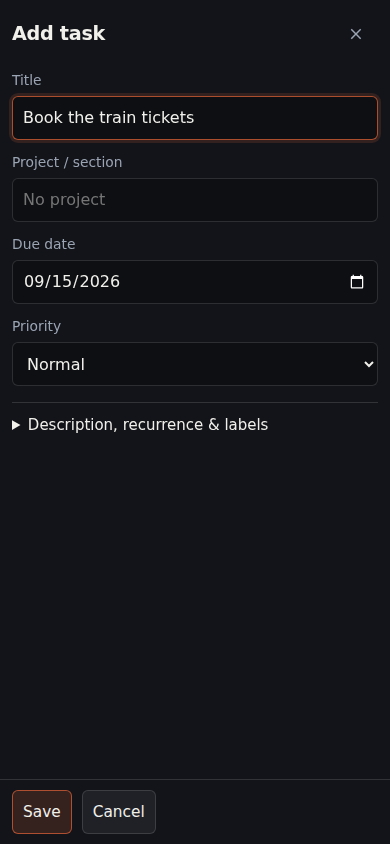
Why did a task disappear?
Check the clock and checkmark filters first. Future tasks are hidden by the current/overdue filter; completed tasks are hidden by the open-only filter. Also check the search text, project filter, and workspace title before assuming a task was deleted.
05 · Shared expenses
For repeat purchases, choose Save as template at the bottom of an expense editor. Its description becomes the template name. The arrow beside Add expense lists this workspace's templates and their delete buttons. Choosing one opens a new expense with today's date and the saved details; review it before adding. Templates use normal saving and undo/redo, and never affect balances themselves.
Set up participants and categories in the expense workspace. Press the green Add expense button, enter an amount and description, and review the date and category.
The usual case is one payer and an equal split. Expand Paid by to change or combine payers. Expand Split to choose who participates or use exact amounts, percentages, or shares. Remainders help keep allocations balanced. Currency is editable where it is displayed; project assignment and notes live under More details.
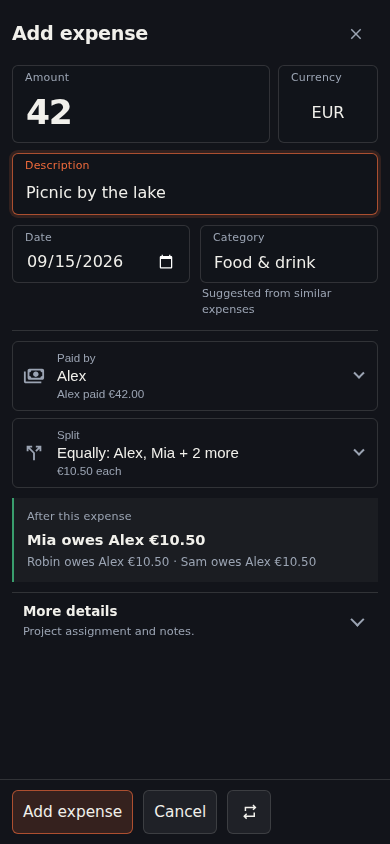
Read the preview before saving: it explains this expense’s allocation. The expense overview shows the wider balances and settlement suggestions. Applying the dialog changes the local document; the shared save action persists it to the repository.
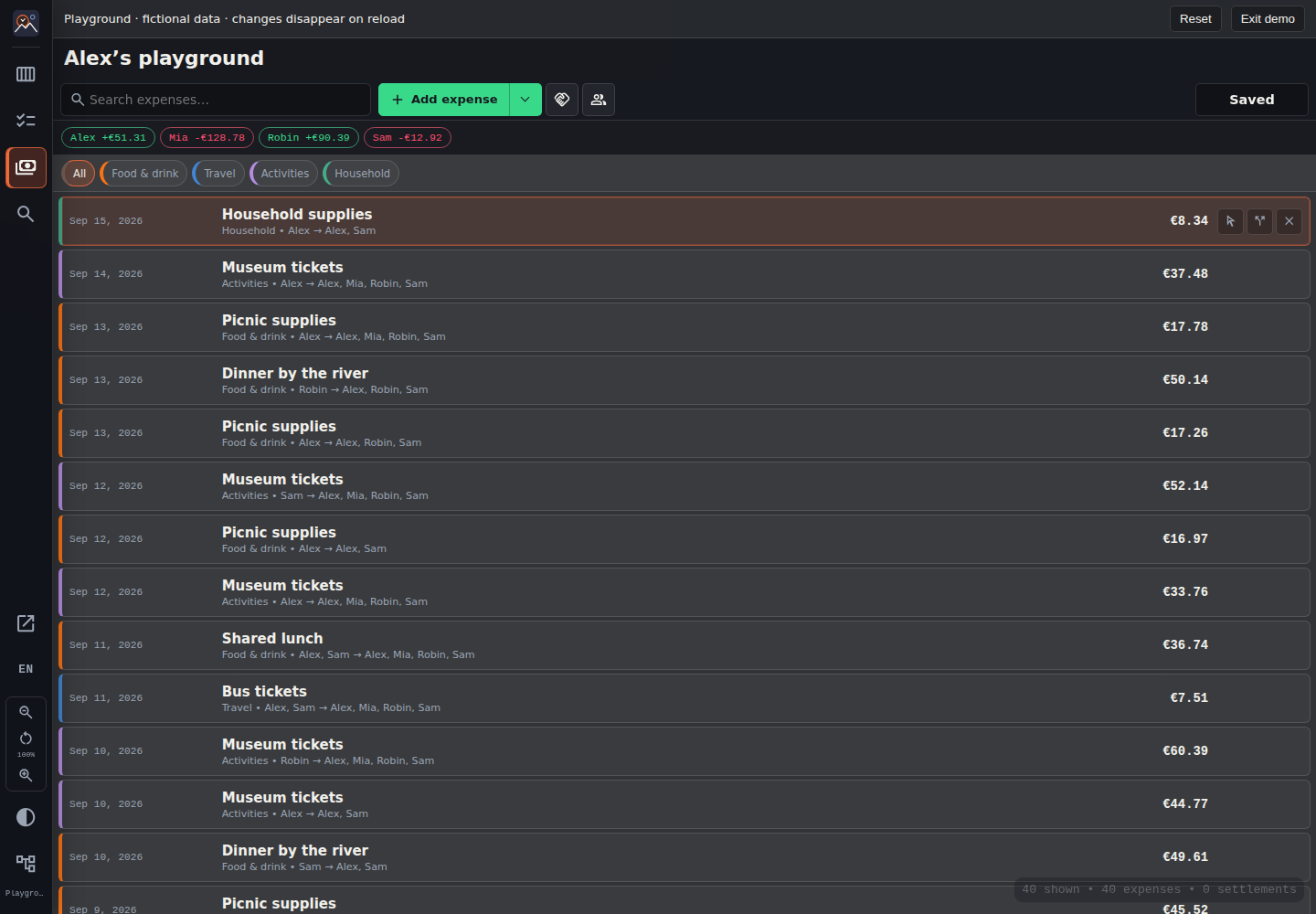
Example: split €42 equally between four people
- Open Add expense in the playground. Enter 42 EUR and Picnic by the lake.
- Under Paid by, keep Alex as the only payer. Under Split, include all four participants equally.
- Review the preview: each share is €10.50; each of the other three participants owes Alex €10.50.
- To exclude someone, change the participants in Split. For unequal shares, switch to percentages, exact amounts, or shares and check the remainder.
Settlement suggestions are a plan for clearing recorded balances, not a bank transfer. Record a settlement only when the real payment has happened.
06 · Saving and recovery
Save Changes means there are applied edits waiting to be written. The button’s subtle fill and countdown show the time until autosave: 60 seconds after your latest edit. Every edit, undo, or redo restarts that timer. Click the button or press Ctrl+S to save immediately.
Autosave and manual save use the same pipeline across connected workspaces. Edits made while a save is in flight remain pending for the next save. Fields in an open dialog are not applied until you confirm it. A successful hosted save creates a Git commit; a local development save writes files without committing.
A save failed. What now?
Keep the tab open and read the save error. Transient failures retry after a delay; expired credentials require reconnecting the affected workspace. Pending edits remain dirty. Do not assume that reloading, disconnecting, or clearing browser data is a safe fix.
Unsaved edits are journaled in IndexedDB where available. This helps recover after a reload but is not a backup or a Git commit. If draft storage is unavailable, heed the warning and save before leaving. Playground edits are deliberately never persisted.
Git history is the durable record. Browser undo is for your current editing session; it is not a replacement for reviewing or restoring an older repository commit.
Reading the save control
- Save Changes + countdown: edits are pending. The fill progresses toward autosave; another edit restarts it.
- Saving: a write is in flight. New edits remain pending and are not silently marked saved.
- Saved: there are no pending applied edits across the open workspace sessions.
- Error or reconnect: inspect the affected workspace. Do not close the page to dismiss the problem.
07 · Data storage and access
The public site serves application code. Your workspace data stays in repositories you choose and is read and written directly through the provider API. Repository privacy and credential permissions control access—not a hidden link to the app.
GitHub device authorization uses a restricted HTTPS relay hosted on Scaleway in Paris because GitHub’s token endpoints do not support direct browser access. It transiently handles device codes and tokens, not workspace documents. GitLab and Codeberg authorization uses direct browser PKCE.
Credentials are kept in session storage by default. Remember opts into longer-lived browser storage. Treat devices with saved credentials as trusted; scripts running on the app origin can access those credentials. Provider access can be revoked in the provider’s settings.
Loaded chunks and unsaved drafts may also be cached in this browser’s IndexedDB. A private repository does not make a shared browser private. Clearing site data removes local credentials, caches, and recovery drafts; it does not delete your repository or revoke provider access.
Reading, zoom, and language
Use the sidebar’s Interface settings for English/German and its theme control for light/dark mode. The sidebar zoom buttons scale the whole app; the week toolbar’s zoom changes only the timeline. On narrow screens, editors fill the available screen even when app zoom differs from 100%. Browser keyboard shortcuts may take precedence over app shortcuts; the visible controls remain available.
The repository README covers development, self-hosting, and data formats. Report problems in GitHub Issues. Do not include tokens or private workspace data.